Published 26 October 20264 min read
A slow site loses customers: Core Web Vitals in plain language
What Core Web Vitals are, why a slow page drives visitors and Google away, and how to measure speed in the Puluno Explorer and improve it on WordPress.
- Speed
- Core Web Vitals
- WordPress
- Explorer
Most people wait a few seconds for a page. Then they go back to search and click a competitor. Speed is not just a feeling — Google measures it and factors it into rankings. This article explains Core Web Vitals (the core web performance metrics) in plain language, shows how to measure them yourself, and what to do about them on WordPress.
No formulas, no complicated terms — just three numbers that decide whether a visitor stays.
What Core Web Vitals are
They are three measurable signals of how a real visitor experiences your page. Google uses them as part of its evaluation, and you'll also find them in Google Search Console (Google's free service for site owners).
- 1LCPhow fast the main content loads
- 2INP / TBThow fast the page responds to a click
- 3CLSwhether content "jumps around"
LCP — load speed (target under 2.5 s)
LCP (Largest Contentful Paint) measures how long it takes for the largest element on screen to appear — usually the main photo or heading. Over 2.5 seconds and the visitor stares at a blank page; some leave before the site even shows up.
The most common culprit: large unoptimized photos. A multi-megabyte image can take seconds to load on mobile.
INP — response to clicks (target under 200 ms)
INP (previously measured similarly as TBT) tracks how quickly the page responds when you click something — a button, menu, filter. If "nothing happens" after a click, the site feels broken even when the content looks nice.
Typical cause: too much JavaScript (ad scripts, heavy themes, unnecessary plugins).
CLS — visual stability (target under 0.1)
CLS (Cumulative Layout Shift) checks whether content jumps around while loading. You know the feeling: you go to click a link and an ad pops in, so you tap the wrong thing. That's high CLS.
The usual offender: images and ads without reserved space.
How to measure speed in the Explorer
The Explorer measures homepage performance during a scan and shows a Core Web Vitals panel with the three values and a target for each. Green is fine, red is slowing you down.
A simple workflow:
- Open the Explorer and enter your URL.
- Wait for the scan to finish.
- On the Overview, find the Core Web Vitals panel — each number comes with its target.
- On the Overview, read the findings — slow photos or heavy scripts appear as a concrete tip with a recommendation.
What to do on WordPress (no coding)
Most bottlenecks are fixable in the dashboard, without touching code:
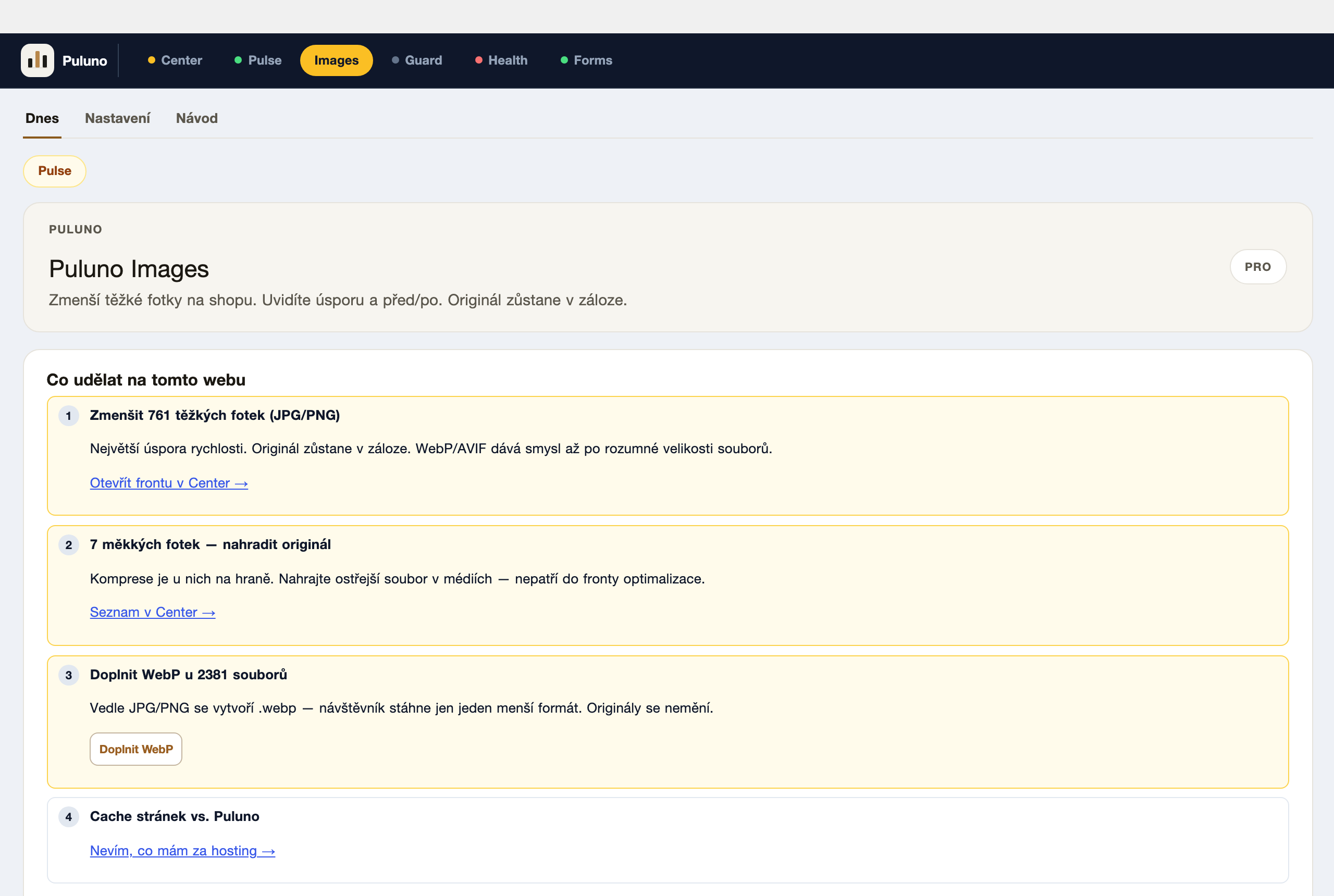
- Shrink photos. The Puluno Images module scans your media library and compresses and resizes images — largest first. That's the most common cure for slow LCP.
- Check heavy scripts. Fewer plugins and ad scripts = better responsiveness (INP). The "heavy scripts" finding shows up in the scan.
- Reserve space for images and ads so content doesn't jump (better CLS).
- Watch the trend. The Puluno Pulse module monitors performance over time and hands slow photos to Images to fix.
Why speed is also about money
A slow page costs orders twice: the visitor leaves and Google ranks you lower. For a shop, the gap between a 2- and 5-second load shows up in completed checkouts. The good news: speed can be measured and improved step by step — you don't need to rebuild the site, just remove the biggest bottlenecks.
To tackle speed alongside other areas (SEO, images, security), see the pricing of modules.
Summary: Speed decides whether a visitor stays. LCP is about shrinking photos, responsiveness about fewer scripts, and CLS about reserved space for content. Measure your homepage in the Explorer, fix the biggest bottleneck, and scan again.