Published 27 October 20265 min read
Images that slow your site down: WebP, AVIF and dimensions made simple
Why large photos are the most common cause of a slow website, how to spot heavy images in the Puluno Explorer, and how to shrink them in WordPress without coding — including WebP/AVIF, dimensions and alt text.
- Images
- Speed
- WebP
- WordPress
On most websites the heaviest thing on the page is a photo. A few unoptimised images straight from a camera or phone, and your homepage weighs several megabytes — on a mobile connection that takes seconds to load. The visitor stares at a blank page and some of them leave before the site even appears.
The good news: images are also the easiest slowdown to fix. You don't need to rebuild the site or write any code. In this article we'll explain in plain terms what makes an image slow, how to spot it, and how to fix it right inside WordPress.
Why images decide your speed
Images affect three things that both visitors and Google notice:
- 1File sizehow much data must download before the page shows
- 2Dimensionswhether content "jumps" while loading
- 3Alt texthow Google and screen readers "read" the image
File size — load speed
The bigger the file, the longer it takes to download. The main photo on a homepage is usually the largest element on screen — and until it loads, the site feels slow (in Core Web Vitals this is the LCP metric). A 4 MB photo loads noticeably slower on mobile than the same photo shrunk to 200 kB — and it looks exactly the same.
Dimensions — visual stability
When an image has no width and height set in the code, the browser doesn't know how much space to reserve. So content shifts while loading — just as you go to tap a link, the photo pops in and you tap the wrong thing. That's a high CLS, and it's one of the most annoying experiences on mobile.
Alt text — SEO and accessibility
Alt is a short text description of the image. Google reads it (it helps understand the content and show the photo in image search) and so do screen readers for blind users. A missing alt is a wasted SEO chance and an accessibility barrier.
How to spot heavy images in the Explorer
The Explorer on puluno.io measures your homepage during a scan and lists large images as a specific finding — how much they weigh and how much you could save.
- Open the Explorer and enter your site address.
- Wait for the scan to finish.
- In the Overview find the images finding and the Core Web Vitals panel (especially LCP).
- The finding shows which photos slow you down most and what to do.
Formats made simple: JPG, WebP and AVIF
You don't need the technical details, just the order from oldest to most efficient:
- 1JPG / PNGolder formats, usually needlessly large
- 2WebPmodern, typically 25–35 % smaller at the same quality
- 3AVIFnewest, even more efficient, worth it for large photos
The trick is that the original stays and a more efficient version is created alongside it. The visitor's browser then picks the one it understands — modern browsers get WebP/AVIF, older ones get JPG. You don't convert anything by hand and you never lose your original photos.
What to do in WordPress (no coding)
You can handle everything above from the admin, without touching code:
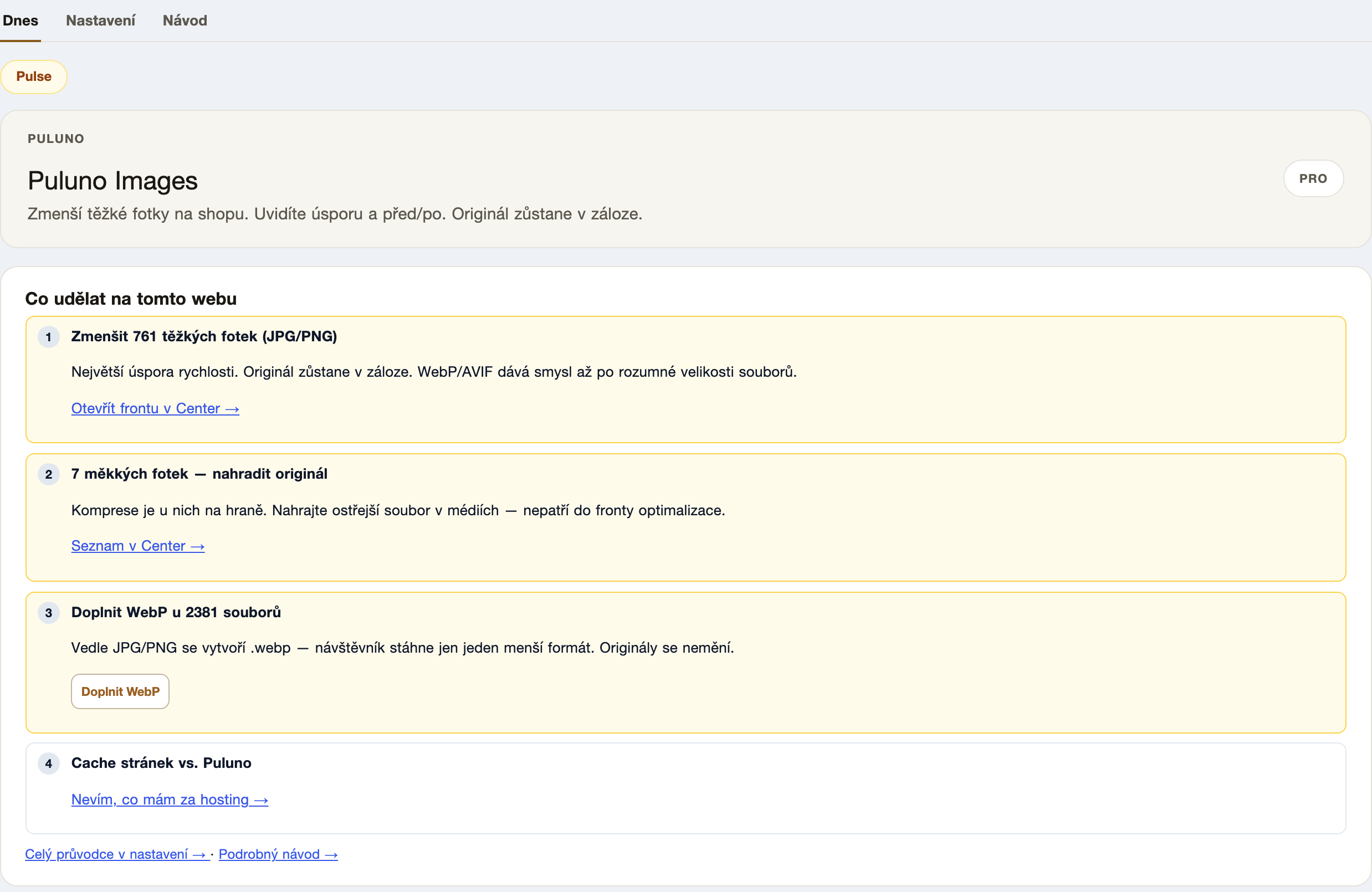
- Shrink the heaviest photos. The Puluno Images module scans the media library, sorts images from largest, and compresses them. The original stays backed up, so nothing breaks.
- Add WebP (and AVIF for large photos). Images creates the efficient version next to the original — the visitor downloads only the smaller one.
- Keep dimensions set. When images have width and height, content doesn't jump while loading (better CLS).
- Fill in missing alt text. It helps both SEO and accessibility; you'll find the findings in the scan.
Why it pays off
Lighter images mean a faster site (the visitor stays), a better position in Google (speed is part of ranking), and a more accessible site thanks to alt text. On a shop with a large gallery the difference shows immediately in speed and in completed purchases — while the photos look the same to the eye.
If you want to handle images together with speed and SEO at once, take a look at the pricing of the modules.
Summary: Images are the most common website slowdown. Shrink the largest photos, add WebP/AVIF next to the original, set dimensions and fill in alt text. Find the heaviest images in the Explorer scan and fix them in the Puluno Images module — no coding, and you can always roll back to the original.